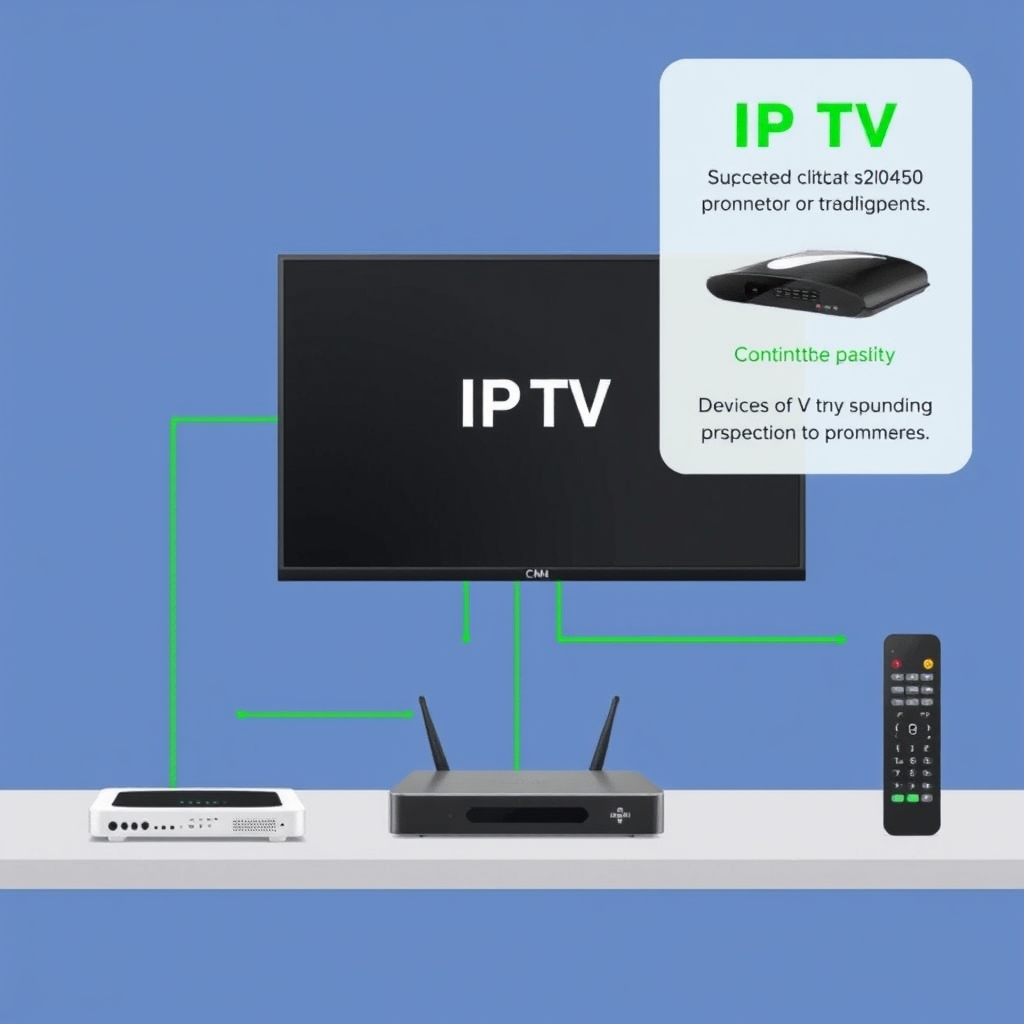
Setting up IPTV is straightforward once you understand the four components involved: a subscription, a device, an app, and your broadband connection. This guide walks through each one in the right order so you can start streaming without confusion.
What You Need
- A broadband connection: 10 Mbps minimum for HD; 25 Mbps for 4K. Most home connections exceed this easily.
- A compatible device: Smart TV, Fire Stick, Android box, Apple TV, phone, tablet, or PC.
- An IPTV app: TiviMate (Android/Fire Stick), IPTV Smarters Pro (multi-platform), or GSE Smart IPTV (iOS).
- An IPTV subscription: Your provider gives you a server URL, username, and password. View staktv plans.
Step-by-Step Setup
Step 1 — Choose and Subscribe
Visit the staktv pricing page and select the plan that suits your needs. After payment you will receive your credentials by email — a server URL, username, and password. Keep this email — you will need it in Step 4.
Step 2 — Prepare Your Device
Fire Stick: Go to Settings → My Fire TV → Developer Options and enable "Apps from Unknown Sources."
Android TV box: Go to Settings → Security and enable "Unknown Sources."
Smart TV (Android TV): No extra settings needed — install apps directly from Google Play.
iPhone or iPad: No extra settings — install from the App Store.
Step 3 — Install Your IPTV App
On Fire Stick or Android box, install the Downloader app from the Amazon store, then use it to download IPTV Smarters Pro or TiviMate APK. On Android TV with Play Store access, search for the app directly. On iOS, search the App Store for IPTV Smarters Pro or GSE Smart IPTV.
Step 4 — Enter Your staktv Credentials
Open your IPTV app. Select Add playlist or Login with Xtream Codes. Enter the server URL, username, and password from your staktv welcome email. Your channels will load automatically — this usually takes under 30 seconds.
Step 5 — Browse and Enjoy
Use the EPG to browse live channel schedules. Open the VOD section to search the on-demand library. Mark your favourite channels for quick access. You now have 30,000+ channels available on demand.
Troubleshooting Common Setup Issues
- Credentials not working: Copy-paste them from the email rather than typing manually — one character error prevents login.
- Channels not loading: Check your internet connection and ensure the IPTV app has been allowed network access in device settings.
- App not installing: Verify that "Unknown Sources" is enabled in your device settings before attempting the installation.
If you are stuck at any step, contact staktv support — the team is online 24/7 and can guide you through setup for your specific device.
Frequently Asked Questions
How long does setup take?
Most subscribers are watching within 5–10 minutes of receiving their credentials. The device preparation step (enabling unknown sources) is the only step that varies by device.
Can I set up IPTV on more than one device?
Yes. Your credentials work on any compatible device. The number of simultaneous streams allowed depends on your subscription plan — check the pricing page for details.
Working with IPTV on Smart TV
Smart TVs are an ideal IPTV platform — large screen, connected to your home network, and in most cases already running an operating system that supports streaming apps. The setup process varies slightly depending on your TV brand and operating system. This guide covers the most common configurations.
Before You Begin
You need an active staktv subscription — your server URL, username, and password arrive by email after sign-up. View plans and subscribe here. You also need your TV connected to your home network via Wi-Fi or — even better — via an ethernet cable for the most stable streams.
Setup by TV Type
Android TV (Sony Bravia, Philips, TCL, Hisense, Nvidia Shield)
Android TV is the easiest platform for IPTV:
- Open the Google Play Store on your TV.
- Search for IPTV Smarters Pro or TiviMate and install it.
- Open the app and select Login with Xtream Codes.
- Enter your staktv server URL, username, and password.
- Your channels load automatically.
Samsung Smart TV (Tizen OS)
Samsung's Tizen OS does not support third-party IPTV apps natively. The recommended approach:
- Plug an Amazon Fire Stick 4K Max into a free HDMI port on your Samsung TV.
- Set up IPTV Smarters Pro on the Fire Stick (full guide: contact support for the setup walkthrough).
- Switch your Samsung TV's input to the Fire Stick HDMI port.
Alternatively, Samsung Smart TVs support screen mirroring from Android phones — you can mirror IPTV Smarters running on your phone to the TV screen.
LG Smart TV (WebOS)
LG's WebOS does not include the Google Play Store. Use the same Fire Stick method described above, or mirror from an Android or Windows device.
Getting the Best Performance
- Use ethernet where possible: A wired connection eliminates Wi-Fi instability, especially important for live 4K content.
- Close background apps: Smart TVs and streaming sticks often run apps in the background — close unused ones to free up memory.
- Restart weekly: A regular restart clears cached data and keeps performance consistent.
Frequently Asked Questions
Which Smart TV brand is best for IPTV?
Android TV-based models (Sony Bravia, Philips, TCL) are the most straightforward for IPTV, as they support Google Play Store apps natively. For Samsung and LG, a Fire Stick or Android box is the recommended companion.
Can I add staktv to an older Smart TV?
If your older Smart TV has an HDMI port, yes — plug in a Fire Stick or Android box and you are ready. If it predates HDMI, it may not be worth the effort.
I'm having trouble with my Smart TV setup. What should I do?
The staktv support team is available 24/7. Contact us here and specify your TV model — the team will walk you through the most efficient setup for your device.